Guides
Quick Start Guide: Briefdeck (Web)
Use this guide to access Briefdeck from the web, connect Google Calendar, and get automatic post-meeting
summaries.
Access the Platform
Briefdeck is a web-based platform — no installation or marketplace listing is required.
- Go to https://briefdeck.tech
- Click Sign Up (new users) or Login (existing users).
- Complete the sign-up form or log in with your registered credentials.
- After logging in, you’ll be redirected to your Briefdeck workspace.
Navigate to the Integrations Page
- From the left-side navigation, click Integrations.
- Under Integrations, select Connect Google Calendar.
Connect Google Calendar via Google OAuth
- Click the Connect with Google button.
- A secure Google OAuth window will open.
- Choose your Google account and approve the requested permissions:
- Access to calendar events (to detect meeting links)
- Access to basic profile information (for identification)
🔒 Briefdeck does not access personal emails, messages, or files.
- Once authorized, you’ll see a confirmation that your Google Calendar is connected
successfully.
Automatic Meeting Detection & Bot Joining
- Briefdeck continuously syncs with your connected Google Calendar.
- When a new meeting is scheduled:
- Briefdeck automatically detects the meeting link (Google Meet, Zoom, or Microsoft
Teams).
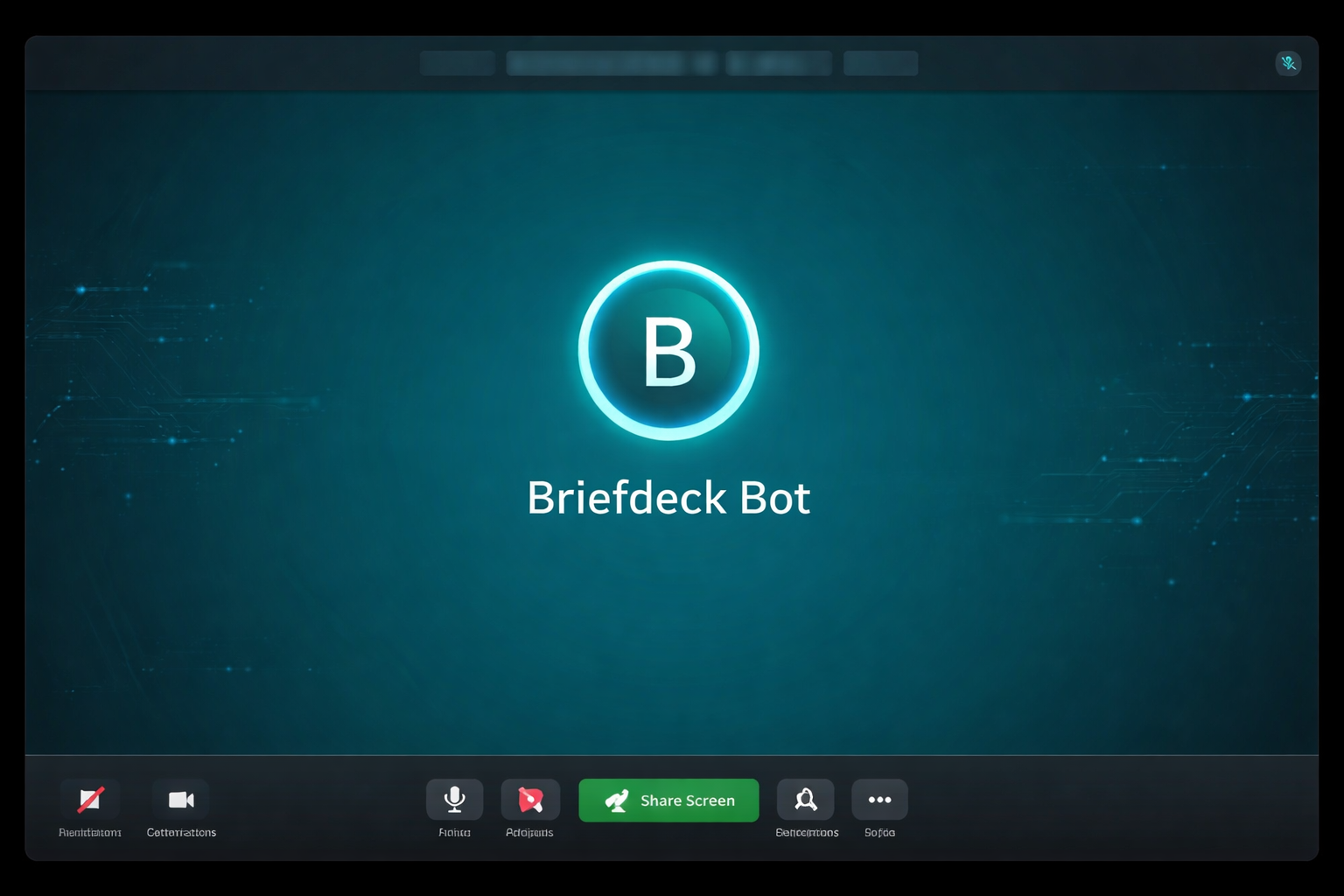
- The AI meeting bot, Briefdeck bot, automatically joins the meeting
at the scheduled start time — no manual invite is required.
Launching Briefdeck During a Call
Once your calendar is connected, join your meeting normally. The Briefdeck bot will join
automatically at the scheduled time and start processing the conversation.
Post-Meeting Summary Generation
After each meeting ends, Briefdeck automatically creates a Post-Meeting Summary with:
- Key discussion points
- Decisions made
- Tasks and follow-ups
Find all summaries in your workspace under Post-Meeting Summary.
Managing Integrations & Data
- Disconnect Google Calendar: Go to Integrations → Disconnect Google.
- Reconnect: Go to Integrations → Reconnect Google Calendar and repeat
the OAuth flow.
All data and recordings are securely stored on Amazon Web Services (AWS) and encrypted in
compliance with HIPAA and GDPR standards.
User Flow Summary
| Step |
Action |
Result |
| 1 |
Visit briefdeck.tech and sign up / log in |
Access workspace |
| 2 |
Go to Integrations → Connect Google Calendar |
Authenticate via Google OAuth |
| 3 |
Schedule a meeting in Google Calendar |
Meeting link automatically detected |
| 4 |
Bot joins the meeting |
AI listens and processes conversation |
| 5 |
After meeting |
Summary generated in workspace |
FAQ
Do I need to install anything?
No. Briefdeck runs entirely in the browser. Just sign in on the website and connect your Google Calendar.
What integrations are supported?
Briefdeck connects seamlessly with Google Calendar, Gmail, Slack, and major video conferencing tools like
Zoom and Google Meet.
How quickly do summaries appear?
They typically appear a few minutes after the meeting ends, once processing completes.
.svg) Briefdeck
Briefdeck